
Learning Studio AI is an intelligent online course creation tool that lets anyone create complete e-learning courses using artificial intelligence.
You just enter a course idea, and the AI automatically generates the structure, lessons, quizzes, and summaries. Whether you’re a teacher, trainer, or creator, this platform makes online course building fast, organized, and ready to share.
Why Learning Studio AI Stands Out
If you’ve ever tried creating an online course manually, you know how time-consuming it can be. From structuring lessons to writing content, adding quizzes, and formatting, it’s a full-time job.
That’s where Learning Studio AI changes everything. I discovered this tool while looking for a smarter way to create structured online lessons. What surprised me most was how it handled everything, from the idea to a full course layout, using just one simple input.
To make this review more authentic, I decided to test it myself. I created a course titled “How to Use ChatGPT for Beginners.” What happened next truly showed how powerful this AI tool is.
Step-by-Step Guide: How to Use Learning Studio AI
Let’s walk through exactly how I created a full online course using Learning Studio AI, with visuals and my experience at each step.
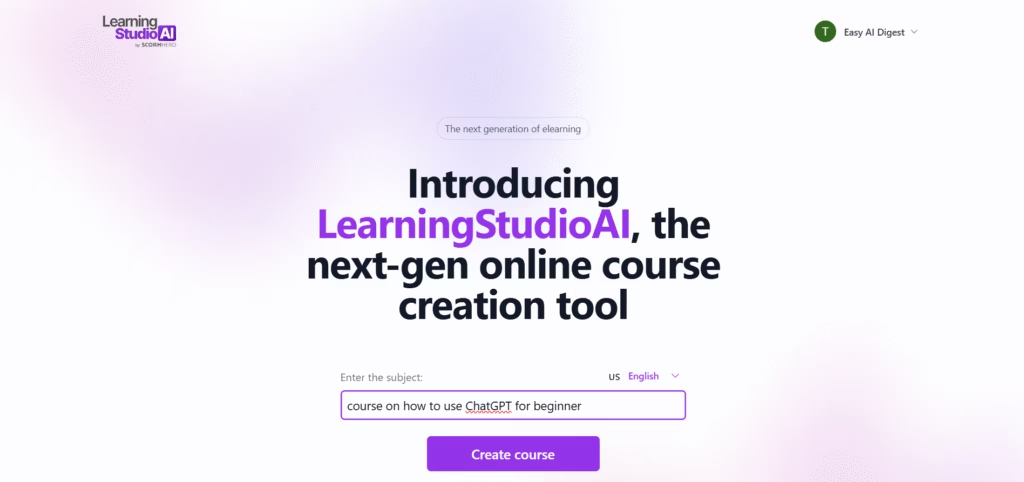
Step 1: Enter Your Course Idea
When you first visit the Learning Studio AI homepage, you’ll see a clean interface with a single text box asking for your course idea.
For my test, I typed:
“Course on how to use ChatGPT for beginners.”
Then clicked on “Create Course.”
The simplicity of this step amazed me, no lengthy setup, no templates to select, just type and go.
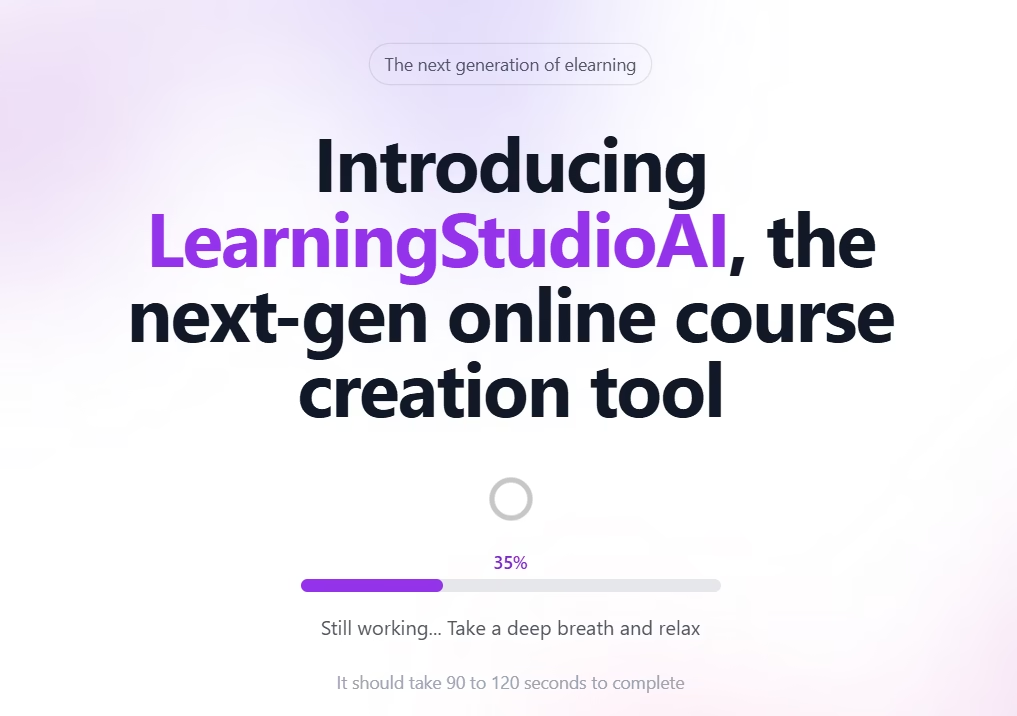
Step 2: Let the AI Build Your Course
After submitting the topic, the AI starts processing instantly. A smooth progress bar appears, saying “Still working… Take a deep breath and relax.”
Within a few seconds, it begins designing the entire course outline, modules, sections, lessons, and interactive parts.
This step gives you the feel of an intelligent assistant working behind the scenes to transform your idea into a structured learning experience.
Step 3: View Your Ready Course Page
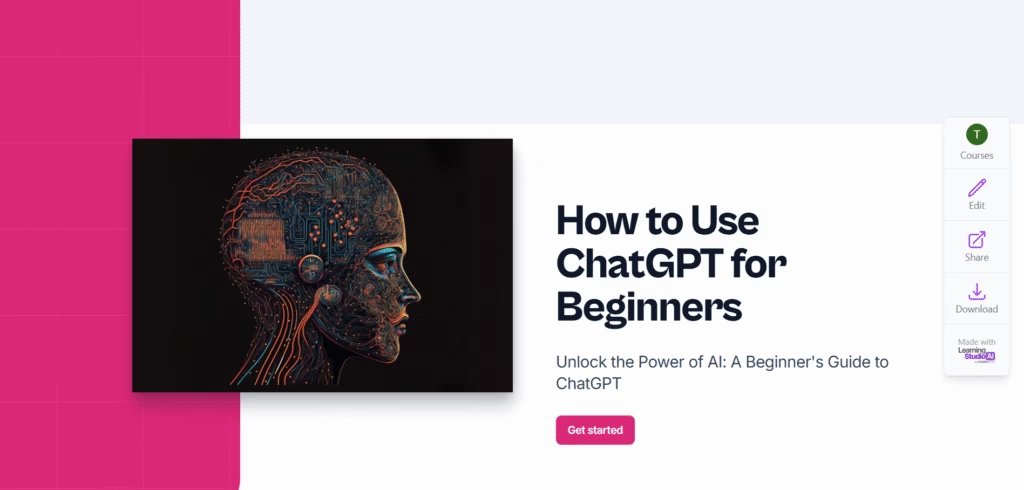
Once the AI completes its process, your full course page is ready, complete with a professional title, course cover, and a “Get Started” button.
For my course, it automatically created a page titled:
“How to Use ChatGPT for Beginners”
With a subtitle: “Unlock the power of AI: A beginner’s guide to ChatGPT.”
The clean, modern layout looked professional enough to publish immediately.
Step 4: Explore the Full Course Structure
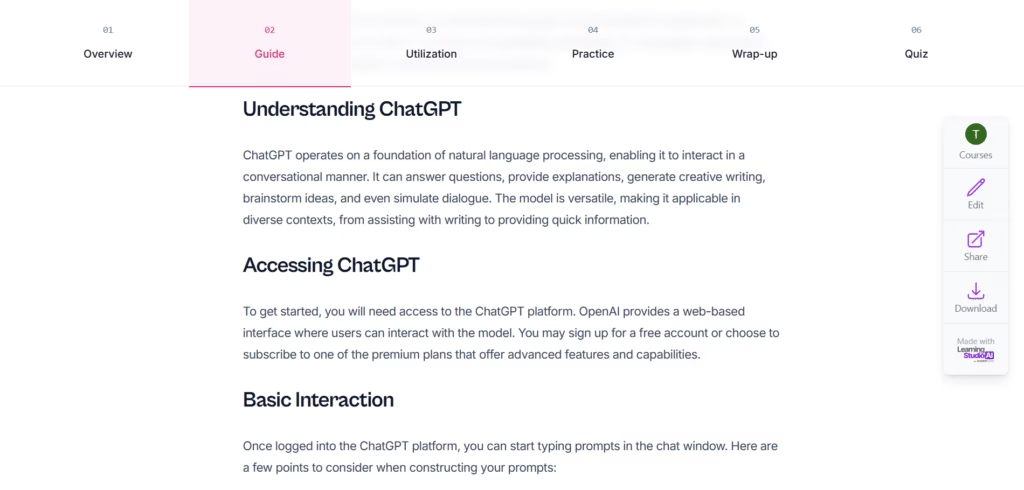
This is where Learning Studio AI really shines. It doesn’t just write a few paragraphs, it builds a complete course architecture.
Here’s what my ChatGPT course included:
- Overview
- Guide
- Utilization
- Practice
- Wrap-up
- Quiz
Each section was neatly divided with clear objectives and explanations.
Step 5: Lesson Summaries and Conclusions
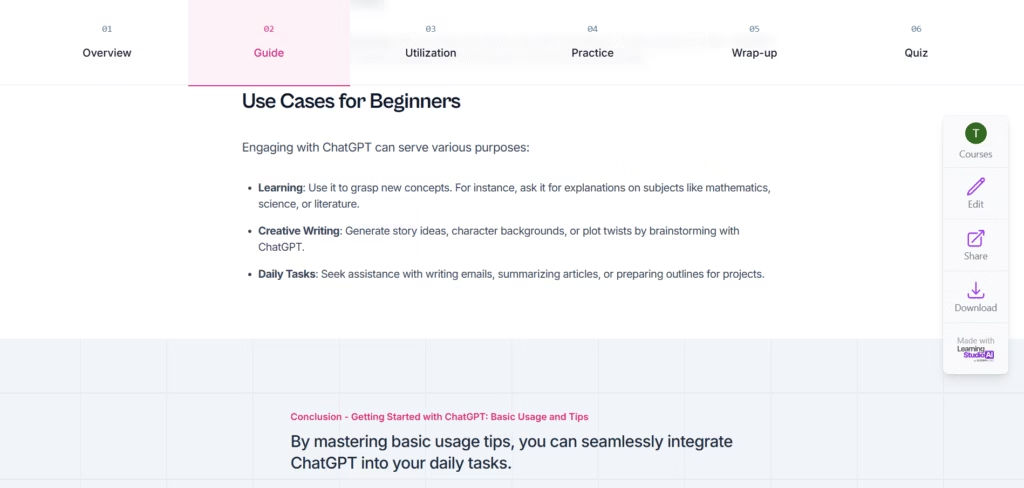
At the end of every section, the AI adds a short, precise conclusion that summarizes what learners have covered.
This is extremely helpful for knowledge retention and maintaining flow between lessons.
In my ChatGPT course, each section ended with a motivational summary encouraging learners to apply what they learned.
Step 6: Interactive Quizzes for Learners
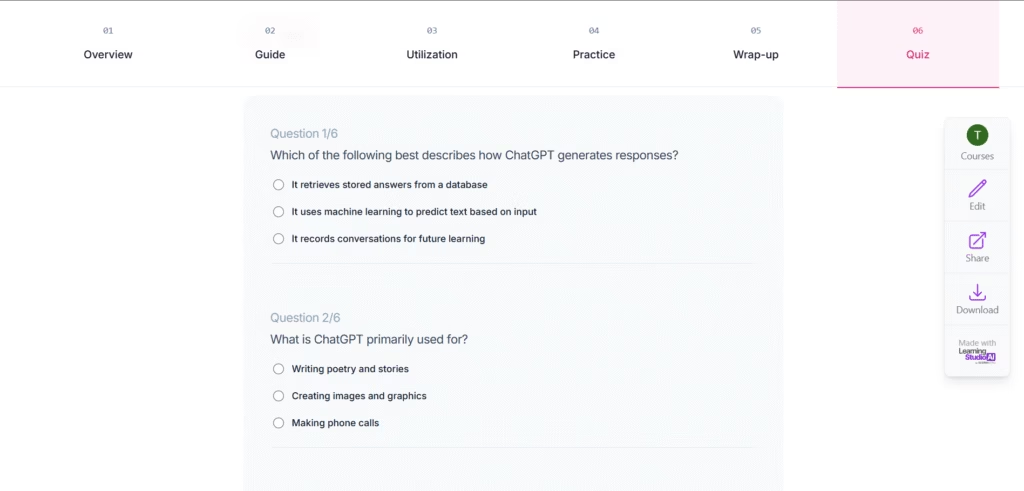
Finally, the platform generates quizzes automatically based on your course topic.
For my test, it created multiple-choice questions like:
- “What best describes how ChatGPT generates responses?”
- “What is ChatGPT primarily used for?”
This transforms your course into an interactive experience instead of just reading material.
You should read this also Why SolidPoint.ai Might Be the Most Helpful Study Tool I’ve Tried
Features That Make Learning Studio AI Impressive
After using it thoroughly, here’s what stood out for me:
- Instant Course Creation: From idea to course in under 2 minutes.
- Professional Design: Every output looks like a polished eLearning product.
- Built-in Structure: The system automatically includes overview, practice, and quizzes.
- Multi-device Friendly: Works smoothly across desktops, tablets, and phones.
- Easy Sharing: You can download, edit, or share your course link directly.
- Analytics (Beta): Offers insights to see how learners interact with your course.
Comparison: Learning Studio AI vs Traditional Course Builders
| Feature | Learning Studio AI | Traditional Course Creation |
|---|---|---|
| Course Setup Time | 2–3 minutes | Several hours to days |
| AI Assistance | Full automation | Manual effort |
| Content Generation | Auto-written with structure | Requires research and writing |
| Quiz & Summary | Auto-generated | Manual |
| Ease of Use | Extremely beginner-friendly | Needs technical skill |
| Output Format | Ready-to-share course | Needs customization |
Verdict: Learning Studio AI offers a complete course setup experience that saves time and effort while maintaining professional quality.
Read this to create images with We Tried Ideogram AI and Here’s Why Everyone’s Talking About It
My Experience & Review: How It Feels to Use Learning Studio AI
I’ve tested many AI tools, but this one impressed me with its clarity, design, and practicality.
While creating my “ChatGPT for Beginners” course, I didn’t write a single lesson manually. The AI handled everything — and what’s more, it felt structured like a real course.
The lessons flowed logically: introduction → guide → usage → application → practice → quiz.
It’s not just a writing tool — it’s a full AI course designer.
If you’re a:
- Teacher who wants to move online,
- Trainer creating study material,
- Or content creator wanting to monetize knowledge,
Then this is an excellent starting point.
Bonus Tips to Get the Best Out of Learning Studio AI
- Be Specific With Your Course Idea:
Instead of typing “AI course,” write “AI for small business marketing” the more detail, the better the structure. - Edit and Personalize:
The AI gives a solid draft, but adding your examples or stories makes it more authentic. - Use Visuals:
You can add your own images or diagrams after generation to make the course more interactive. - Check Quiz Accuracy:
Review questions before publishing to ensure relevance. - Share Strategically:
Use the share option to send your course to your students or post on social media for engagement.
Pros and Cons
Pros
- Lightning-fast course generation
- Beginner-friendly UI
- Automatic quiz creation
- Structured output ready for publishing
- Shareable and downloadable courses
Cons
- Limited customization in free version
- No option (yet) to add video lessons
- Analytics still in beta
Who Should Use Learning Studio AI
- Teachers who want digital-ready lesson plans.
- Institutions building self-paced modules.
- Freelancers selling knowledge-based products.
- Students preparing study guides or revision notes.
Basically, anyone who wants to teach, share, or learn efficiently.
Final Thoughts: A Smart Step Toward Next-Gen Learning
After testing Learning Studio AI, I can confidently say it’s one of the most efficient AI tools for educators and creators.
What makes it powerful isn’t just automation it’s the thoughtful course structure, interactivity, and ease of use.
Whether you want to create a ChatGPT tutorial, a language course, or a skill-based workshop, this tool can cut your work time from days to minutes.
If you’ve ever wanted to launch your own course but didn’t know where to start, Learning Studio AI might be the simplest way to begin.
FAQs About Learning Studio AI
Q1: What is Learning Studio AI used for?
It’s used to create AI-generated online courses, complete with modules, summaries, and quizzes, using just a course topic as input.
Q2: Can I edit the generated course content?
Yes. After AI generation, you can edit lessons, add your own examples, or change visuals.
Q3: Is Learning Studio AI free?
It offers a free plan with limited features, but paid options give you full access and export capabilities.
Q4: Can it be used for any subject?
Absolutely. From technology to soft skills or academics, Learning Studio AI supports nearly any topic.